Use automatic removal when the subject has a reasonably clear boundary and you can inspect the result. A manual editor gives more control over hair, translucent material, reflections, and product shadows. This site provides automatic removal and a PNG download; it does not provide a brush, edge-refinement panel, or layer editor.
Source or task
Useful next step
A clear product silhouette
Try Background Remover, then inspect small holes, handles, and fine edges.
Hair, glass, or a subject close in color to the background
Expect missed or retained pixels. Improve the source or finish the selection in a manual editor.
A marketplace or print delivery
Check the destination's dimensions, background requirements, and file format after editing.
What the example actually shows
A synthetic illustration processed by this tool. Large beige background fragments remain. This result needs manual cleanup.
The tool accepts PNG, JPEG, and WebP and downloads a transparent PNG. The first run loads approximately 52 MB of model resources, so the initial wait can be longer than later runs. Your image is processed in the browser; model and page requests still use a network connection. A smaller copy can help when device memory is limited. Keep the original until the output has been checked.
If the prepared image needs to join a document, use Image to PDF. For a surrounding page or presentation, compare text against its actual background rather than relying only on a generated palette.
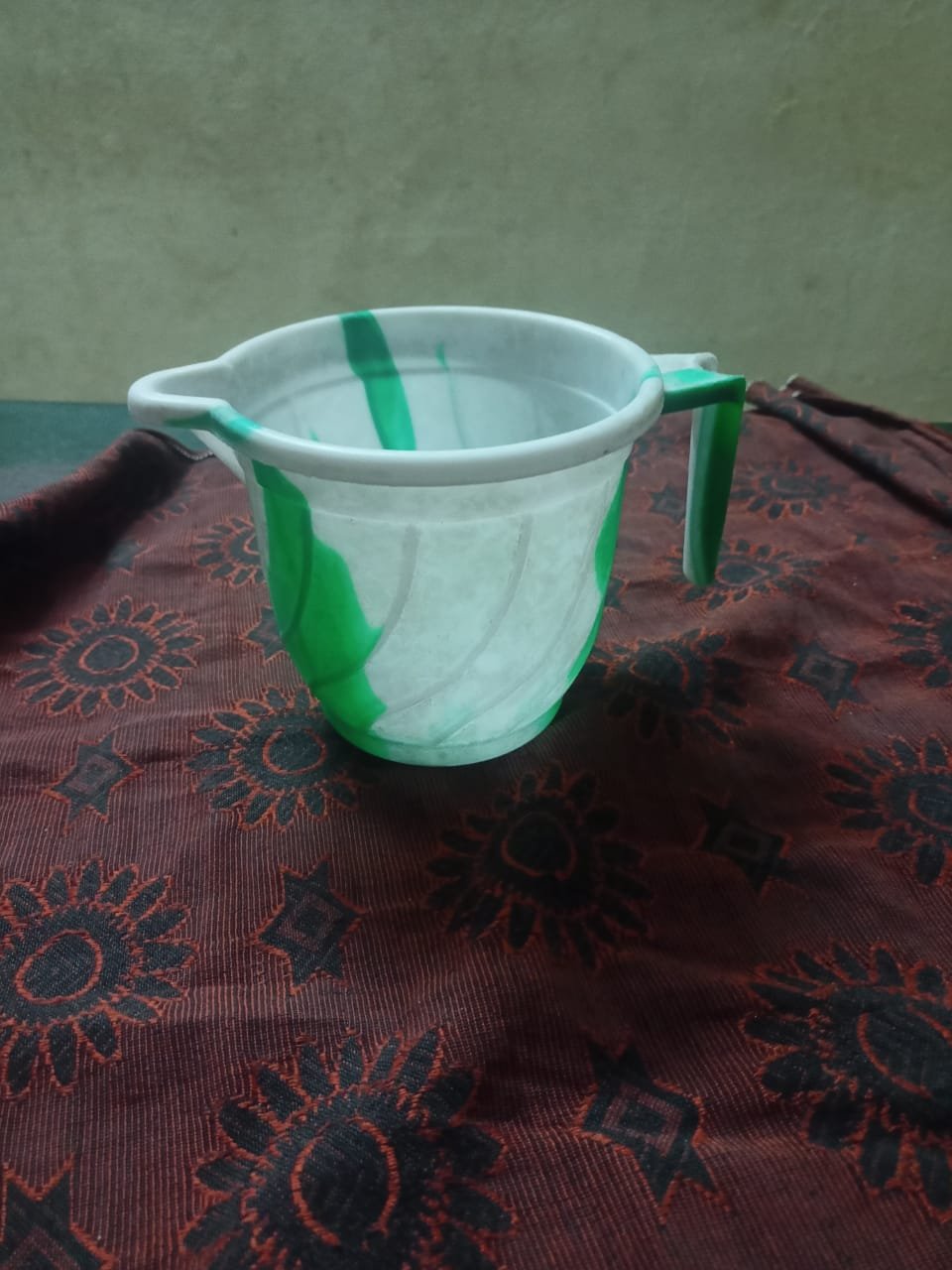
A product photograph with difficult surroundings
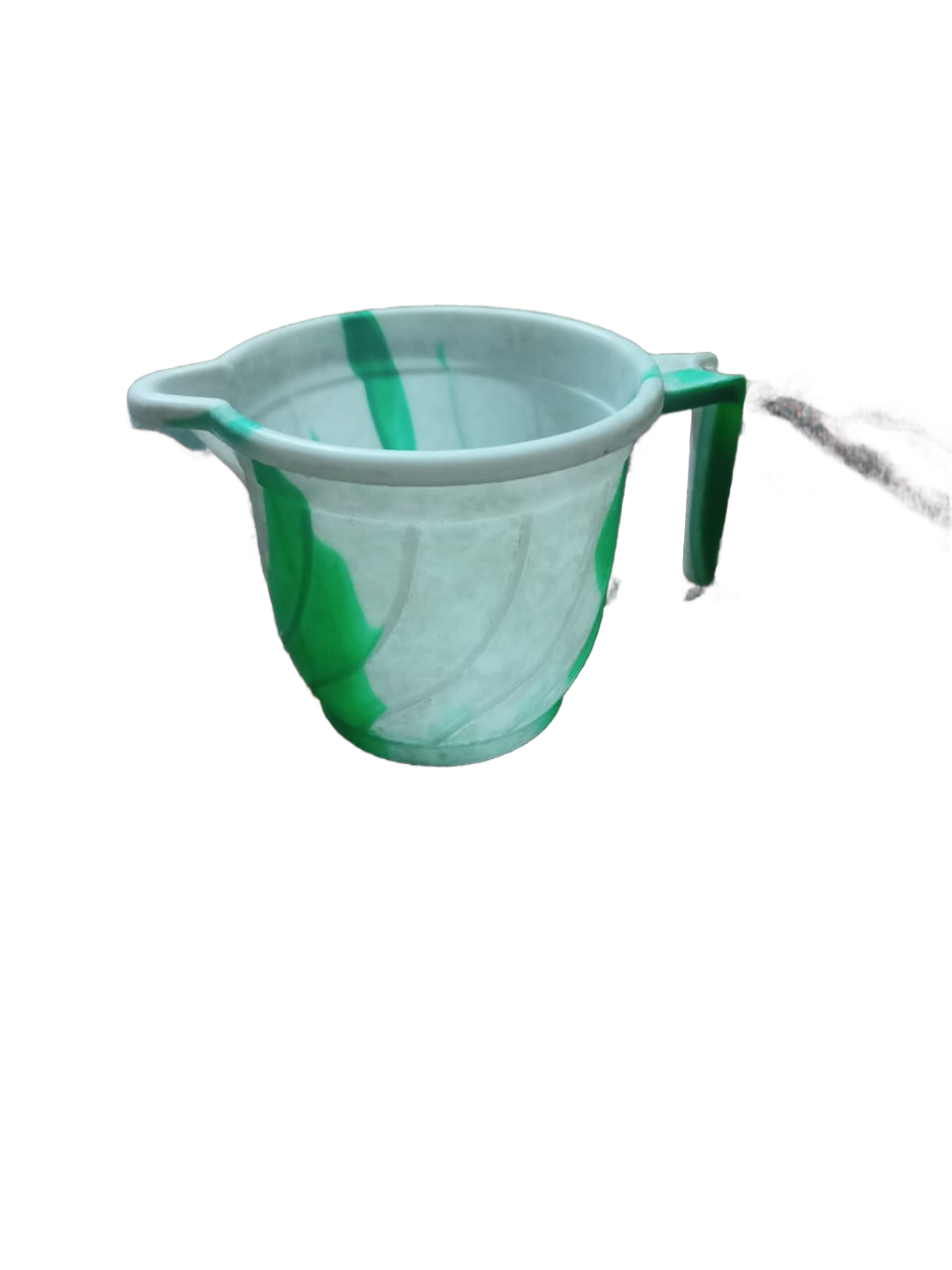
In the recorded Chrome desktop run at an emulated 390-pixel touch viewport, first processing took 34.4 seconds; measured first-party model/runtime resource bodies totaled 52.4 MiB. This is one desktop lab run, not a phone CPU or general speed guarantee. The cup outline and green handle remain. Most wall and cloth pixels become transparent, but a large fabric fragment extends from the handle to the right edge; small background remnants remain below the handle and along the cup edge. This output needs manual cleanup.
Images look blurry after upload? Learn how resolution, CSS scaling, Retina displays, compression, and responsive images affect sharpness and how to fix it.
Why do image colors change after export? Learn how sRGB, Display P3, ICC profiles, browsers, and screen settings affect colors and how to fix differences.
Discover what EXIF photo metadata can reveal, including GPS, timestamps and camera details. Learn what editing changes and how to check images before sharing.
 Anvil Tools